Automation handles the entire graphics sequence: participants, scores, results and breaks between heats. It gives your competition a professional broadcast presentation without an additional staff member switching scenes.
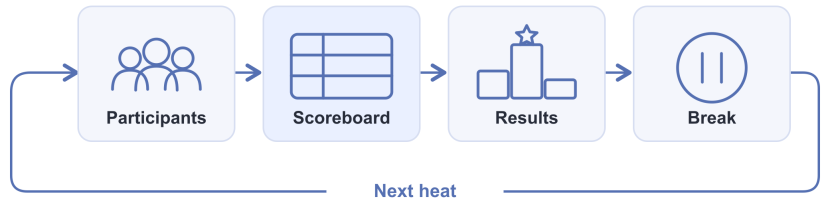
Enable the automatic sequence
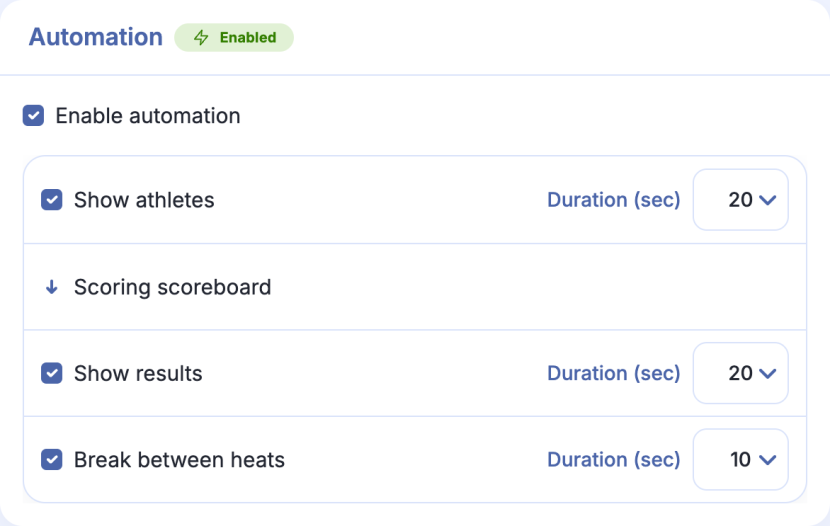
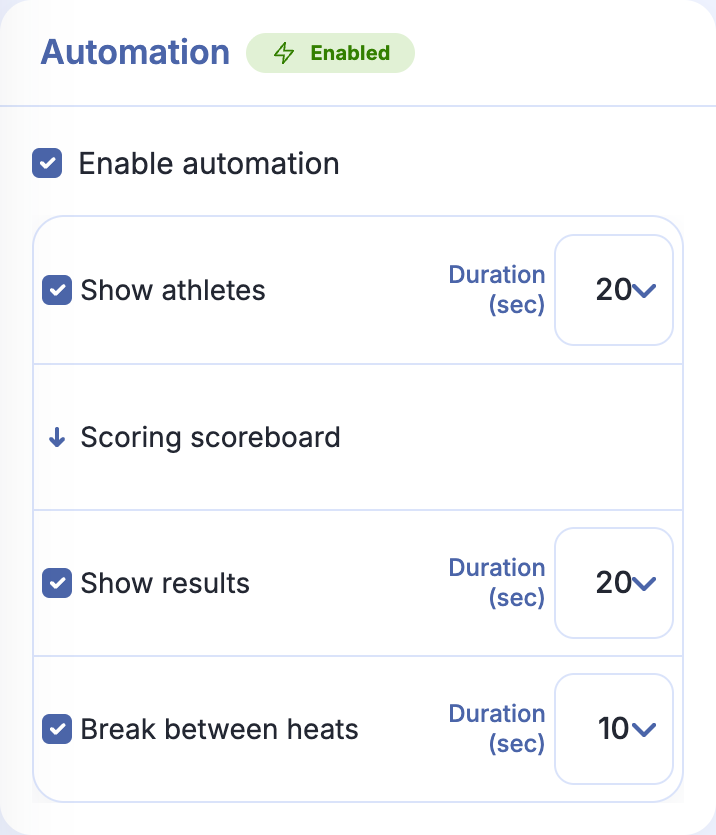
Open the scoreboard settings under Broadcast control. Under Automation, turn on Enable automation.
The advertising block appears first if ads are enabled. Once a heat starts, the scenes change automatically.
Choose the stages you need and set their duration:
| Stage | When it appears |
|---|---|
| Show athletes | At the start of a heat, before the scoring scoreboard. |
| Scoring scoreboard | During the heat, after the athlete list. |
| Show results | After the heat finishes. |
| Break between heats | After the results, before the next heat is shown. |
You can disable the athlete list, results and break separately. The scoring scoreboard remains the main stage during a heat. The break visually separates the previous heat’s results from the next heat’s participants. Even if the next heat has already started, its graphics wait until the specified break has elapsed.
Choose participant and result layouts
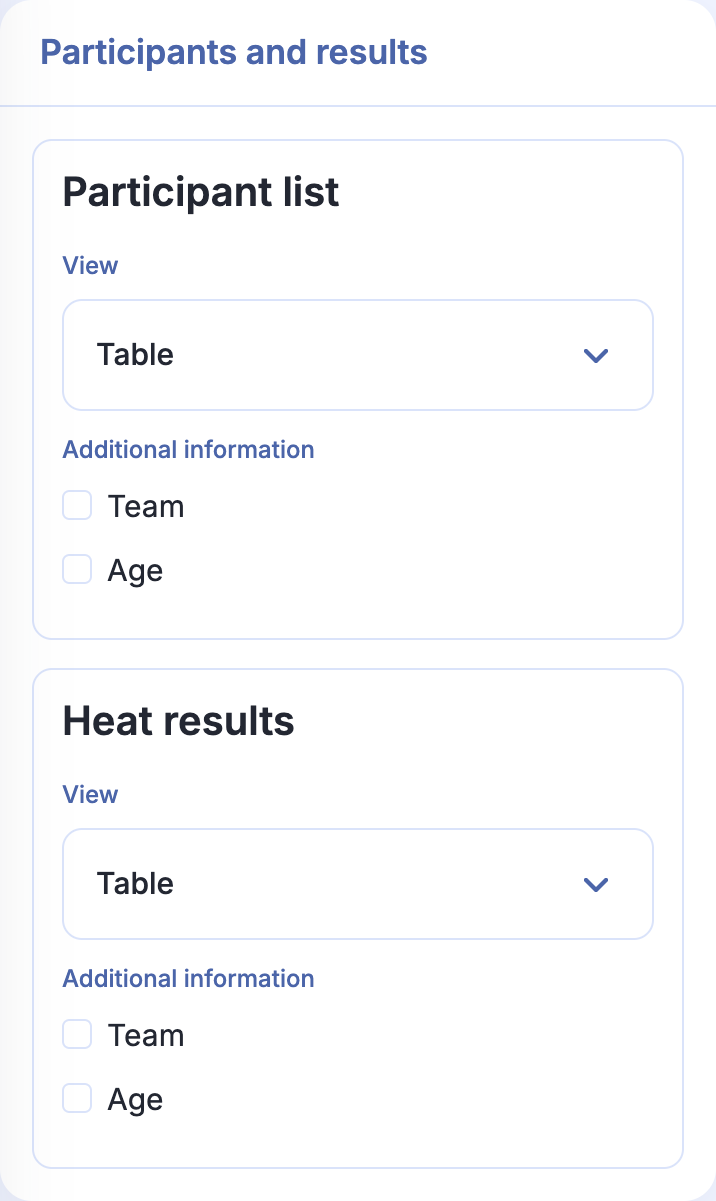
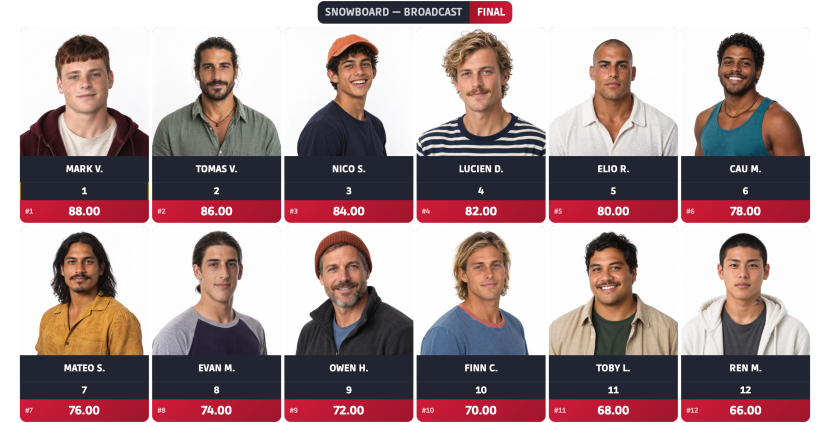
Under Participants and results, choose Table or Cards separately for Participant list and Heat results.
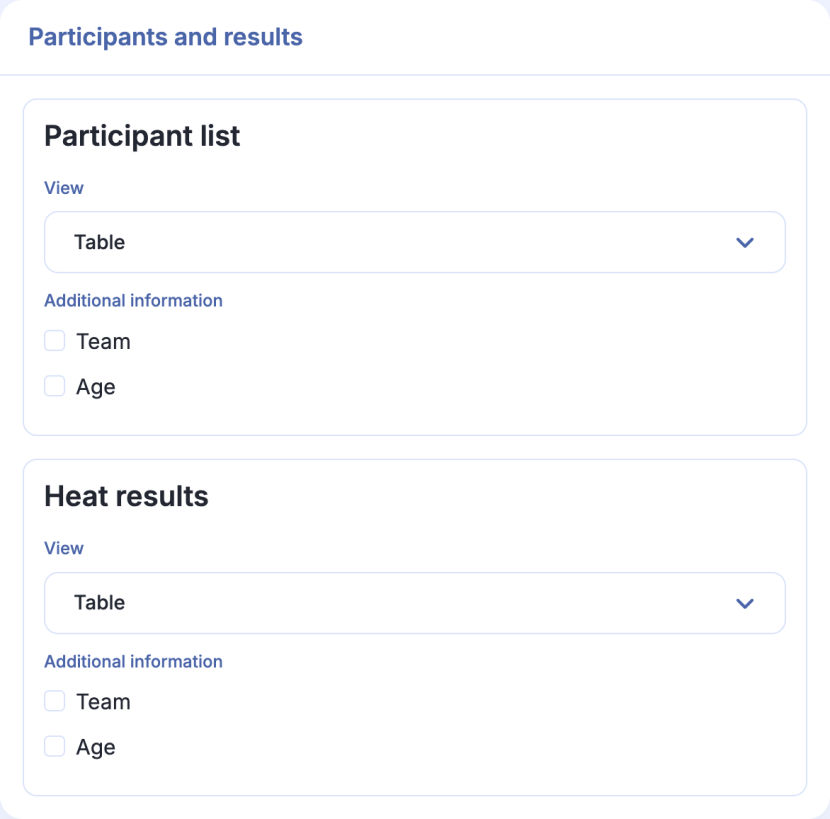
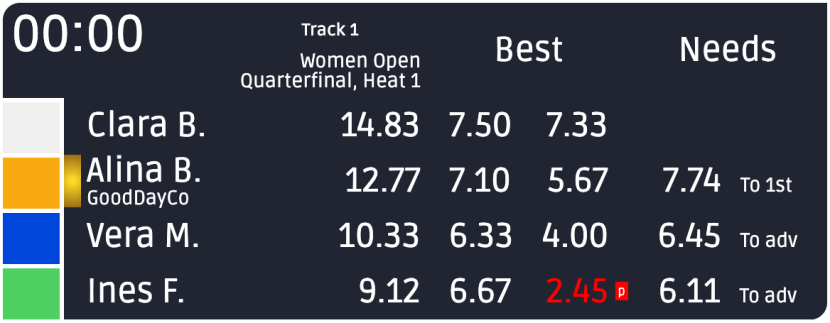
Example scoring scoreboard during a heat:
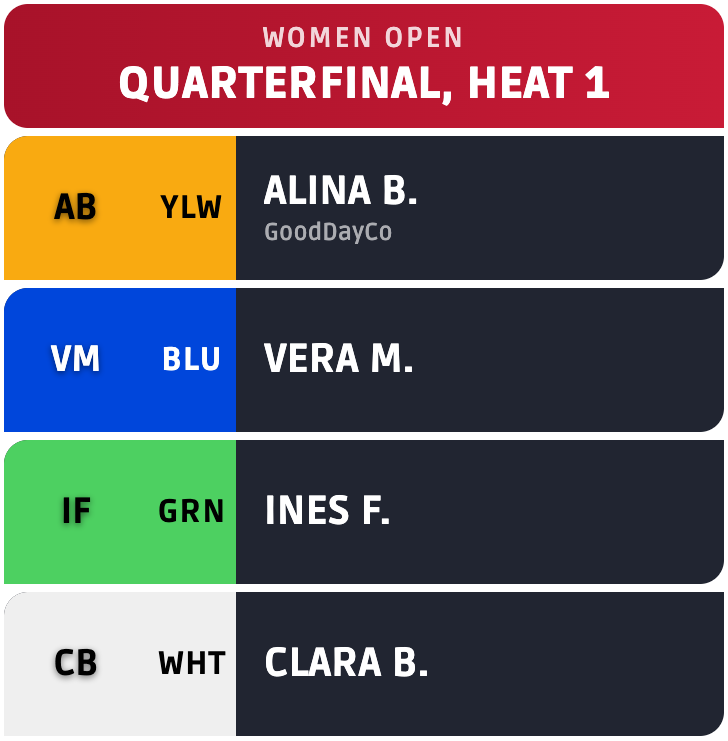
Example participant list:
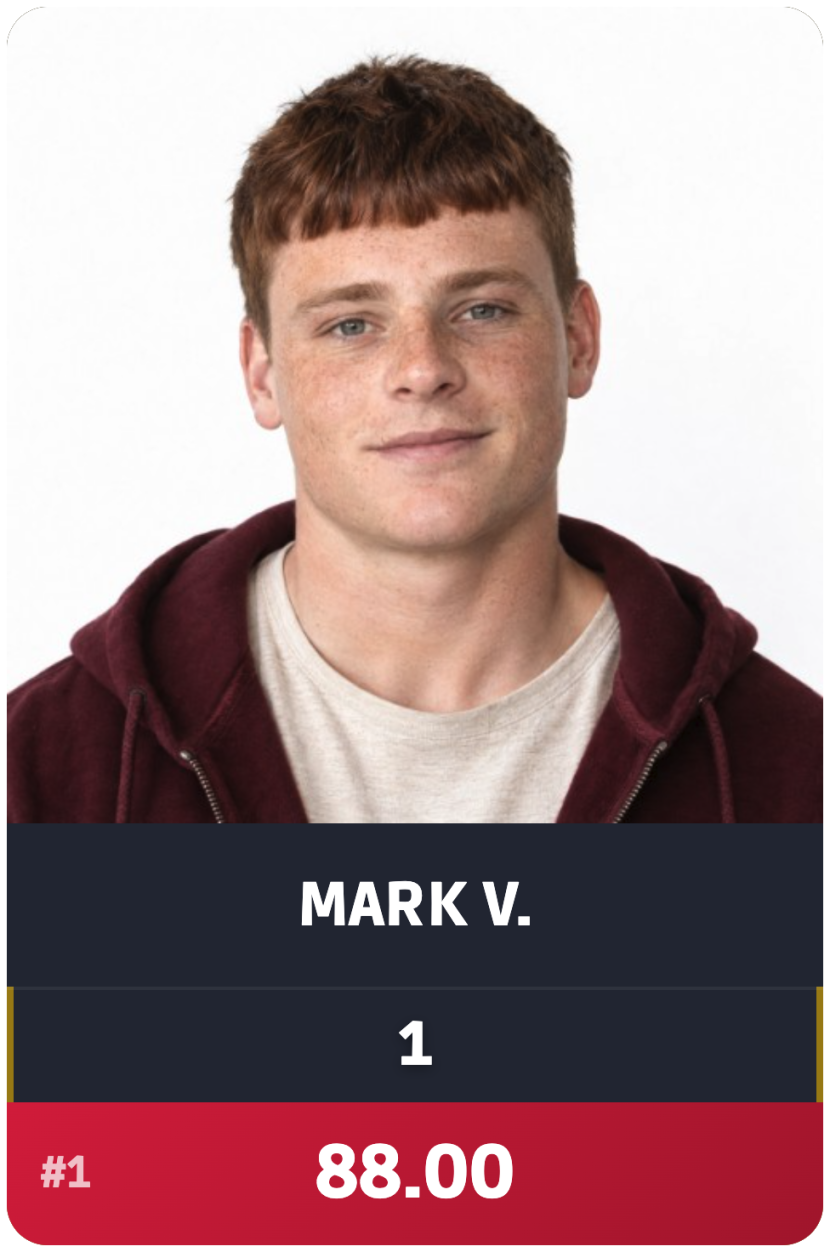
Example results displayed as cards:
A closer look at the winner’s card: