
The video mixer controls your broadcast graphics: display participants and scores, change scoreboard elements, highlight athletes, show their information and add other graphics.
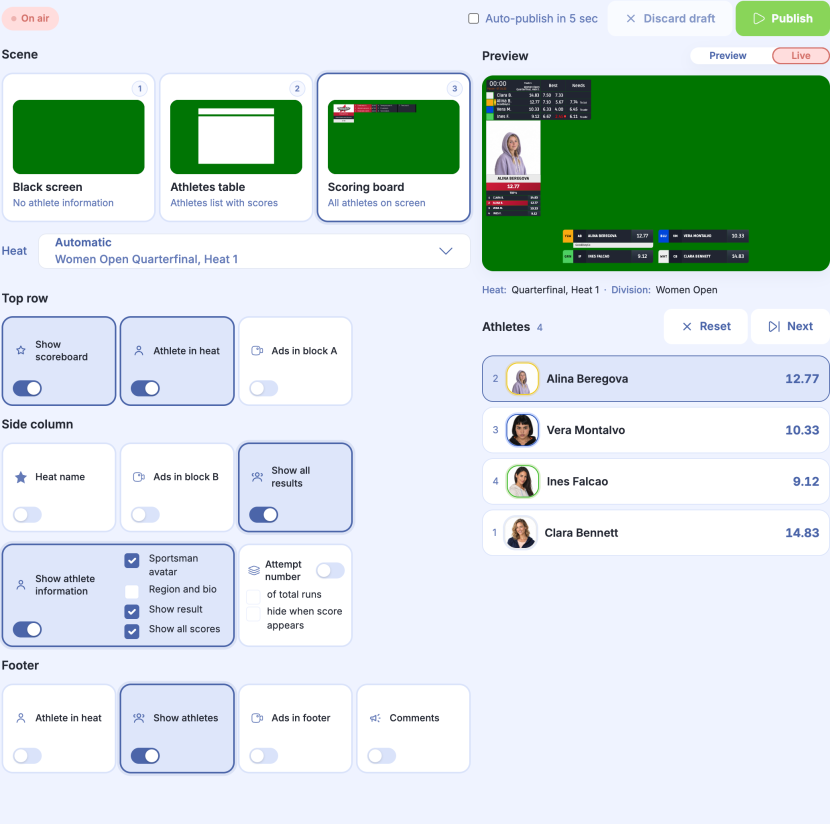
Connect graphics to your broadcast
In the event menu, open Broadcast control, then Video mixer. Open scoreboard output opens the managed scoreboard. Use this URL as the graphics source for your broadcast.
Open  Broadcast settings to change language, names and ads.
Preview and publishing
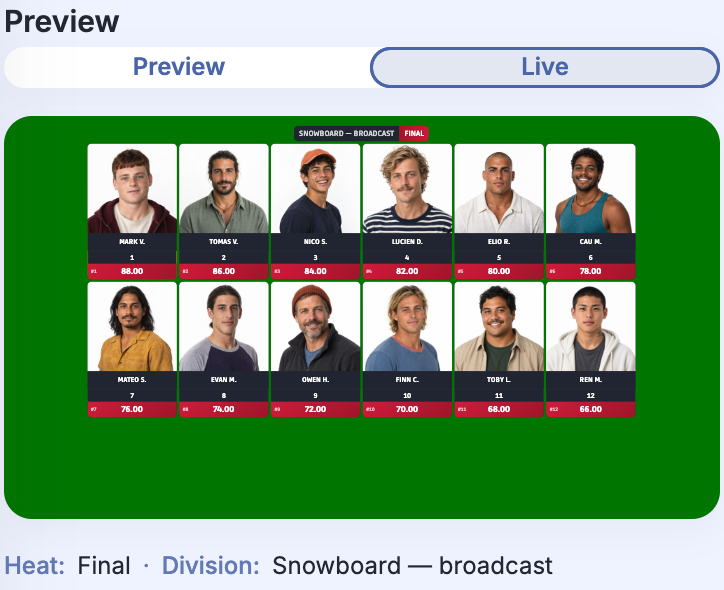
Under Preview, switch between Preview and Live. Preview shows your prepared changes; Live shows the graphics currently sent to the broadcast.
Here, Preview contains a participant list, while Live still shows result cards. The changes have not been published.
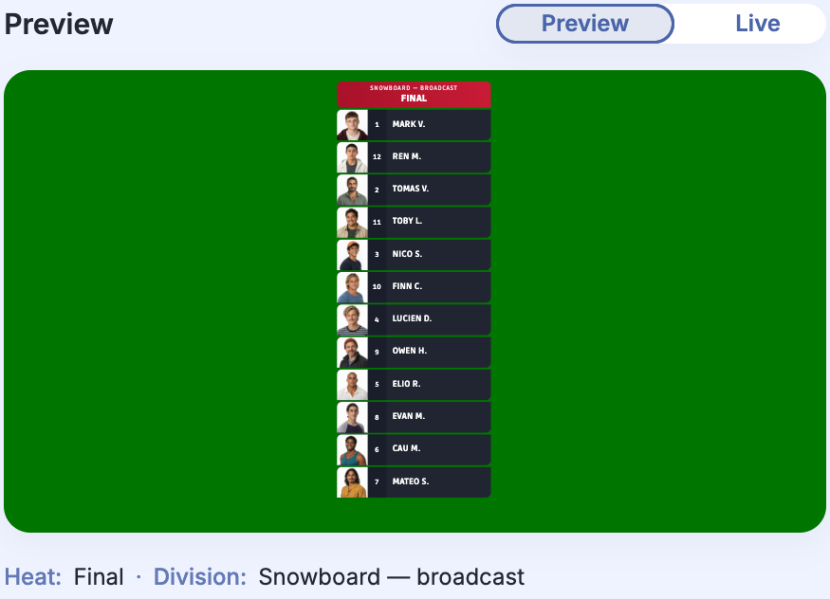
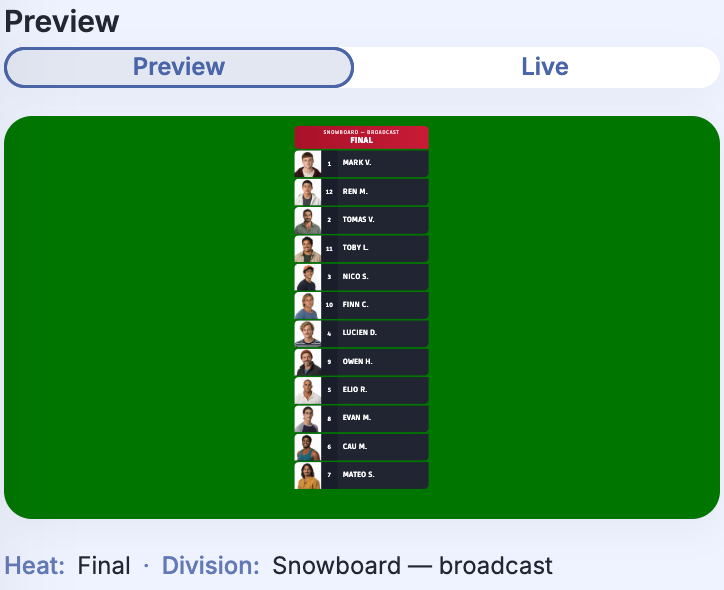
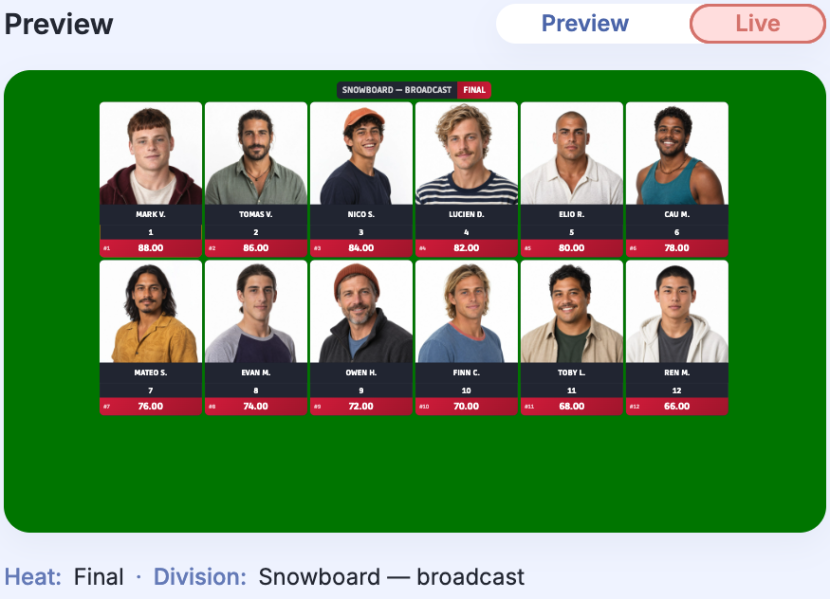
When ready, click  Publish.
Discard draft cancels your prepared changes and restores the current live settings.


For automatic publishing, enable Auto-publish in 5 sec. Changes publish when the timer expires.
Each new interaction with the controls restarts the countdown from 5 seconds.
Scene selection
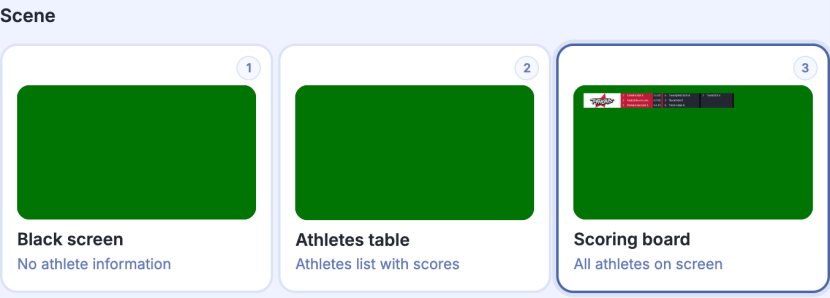
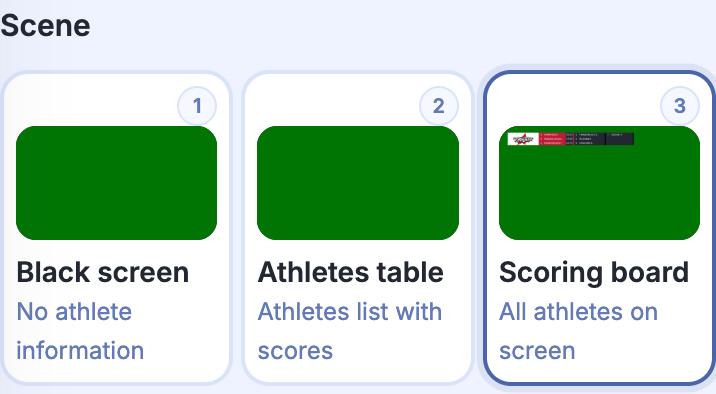
Scene descriptions:
- Black screen — output without athlete information. Enable ads, comments or a frame for positioning the source in your broadcast.
- Athletes table — participants or results for a selected heat.
- Scoring board — score graphics with a top row, side column and footer.
Black screen scene
- Advertisement displays the enabled organizer, partner and additional logos. Choose the logos and their duration in the ad settings.
- Comments displays messages from the event chat. Under Chat in the event Settings, enable Show chat and choose which messages to display: Show regular messages on air or Show approved messages on air.
- Frame shows the source boundaries to help position the graphics in your broadcast. Turn it off after setup.
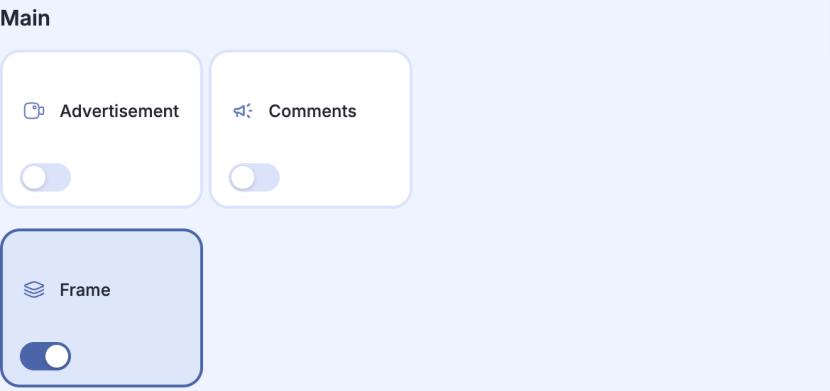
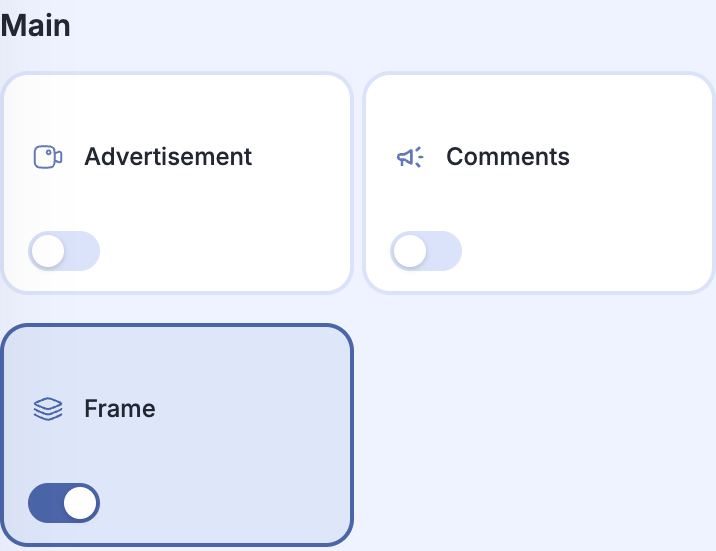
Click Publish to send the selected elements to the live output.
Athletes table scene
Choose a heat
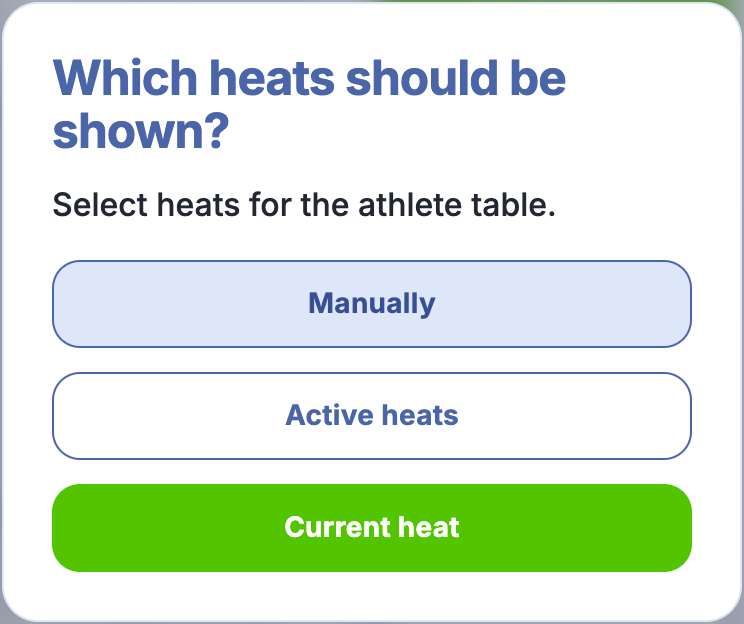
Selecting this scene opens Which heats should be shown?:
- Current heat automatically selects the current heat.
- Active heats selects the active heats when several run at once.
- Manually lets you select a heat in Heats.
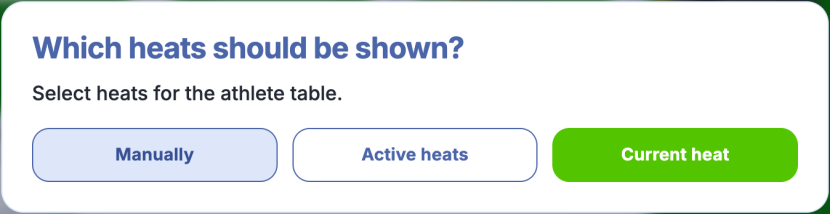
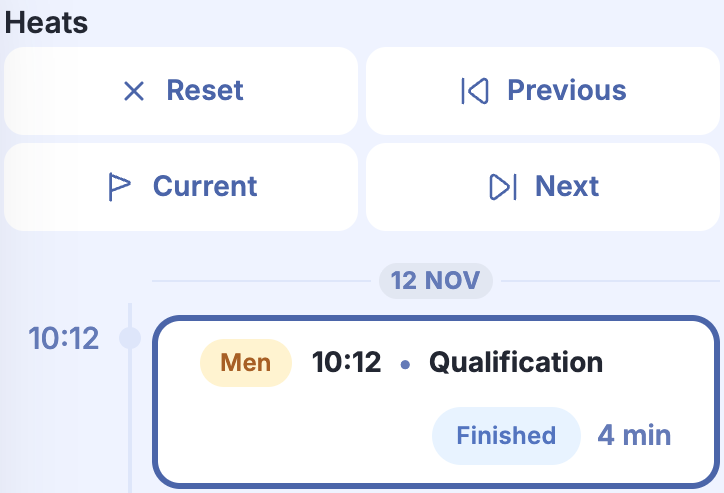
You can change the selection after opening the scene. In Heats, click a heat or use Previous, Current, and Next. Current can select multiple active heats. Reset clears the selection.
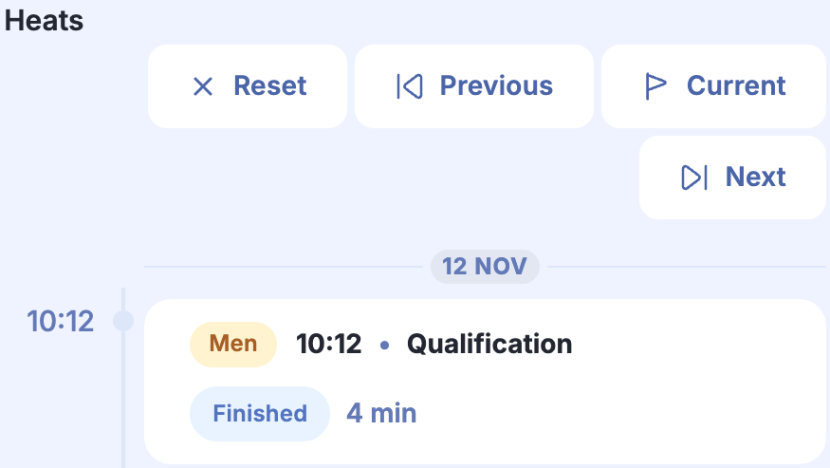
Participants and results
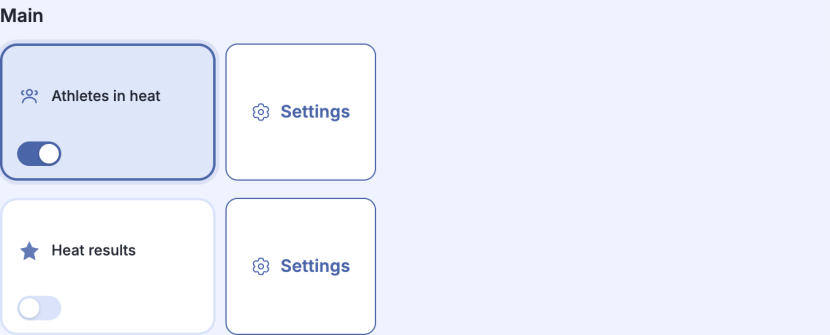
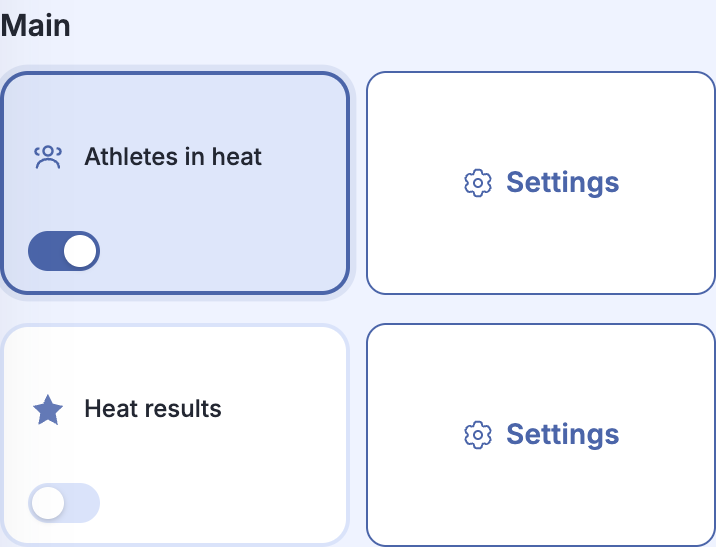
- Athletes in heat displays the selected heat’s participants.
- Heat results displays their results and places. Results can also be shown before the heat finishes if scores are already available. Without scores, no results appear.
- The adjacent Settings let you choose Table or Cards separately for participants and results.
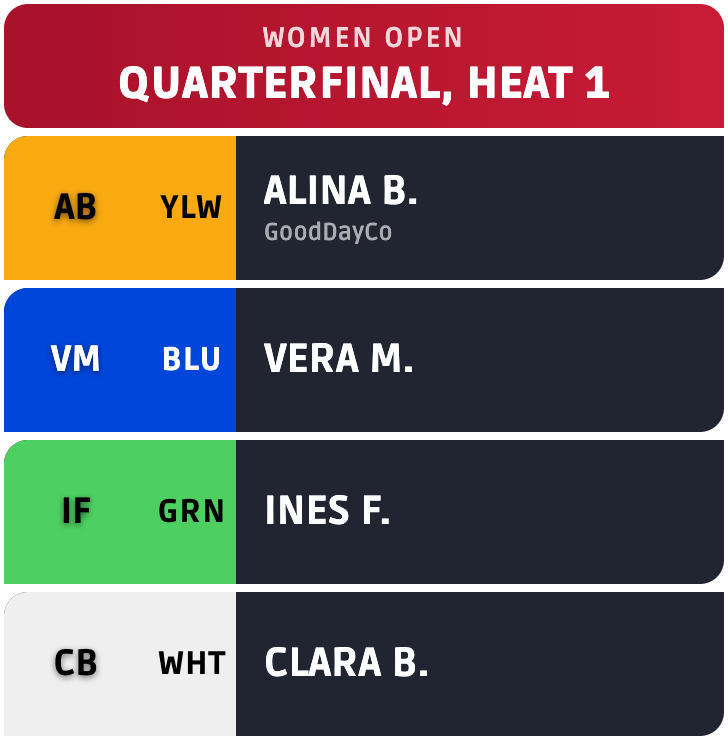
The participant list in the broadcast:
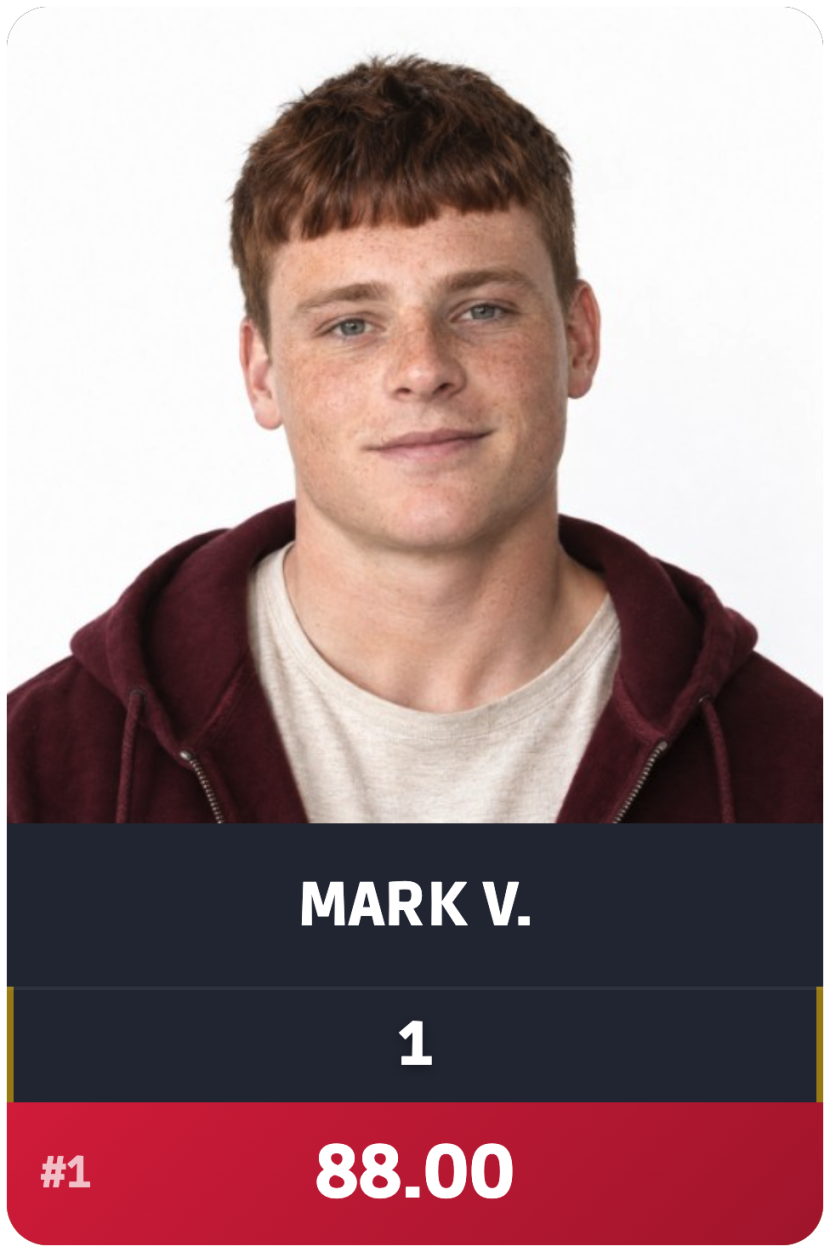
Results displayed as cards:
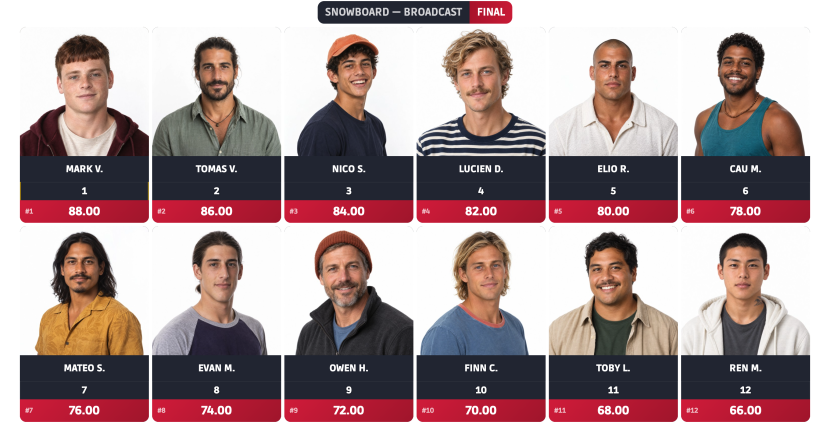
A closer look at the winner’s card:
Check the selection in Preview, then click Publish.
Scoring board scene
This scene displays score graphics for a running heat. If several heats are active, choose one under Heat.
- Top row — scoreboard, time, athlete highlighting and top ads; the controls depend on the scoreboard view.
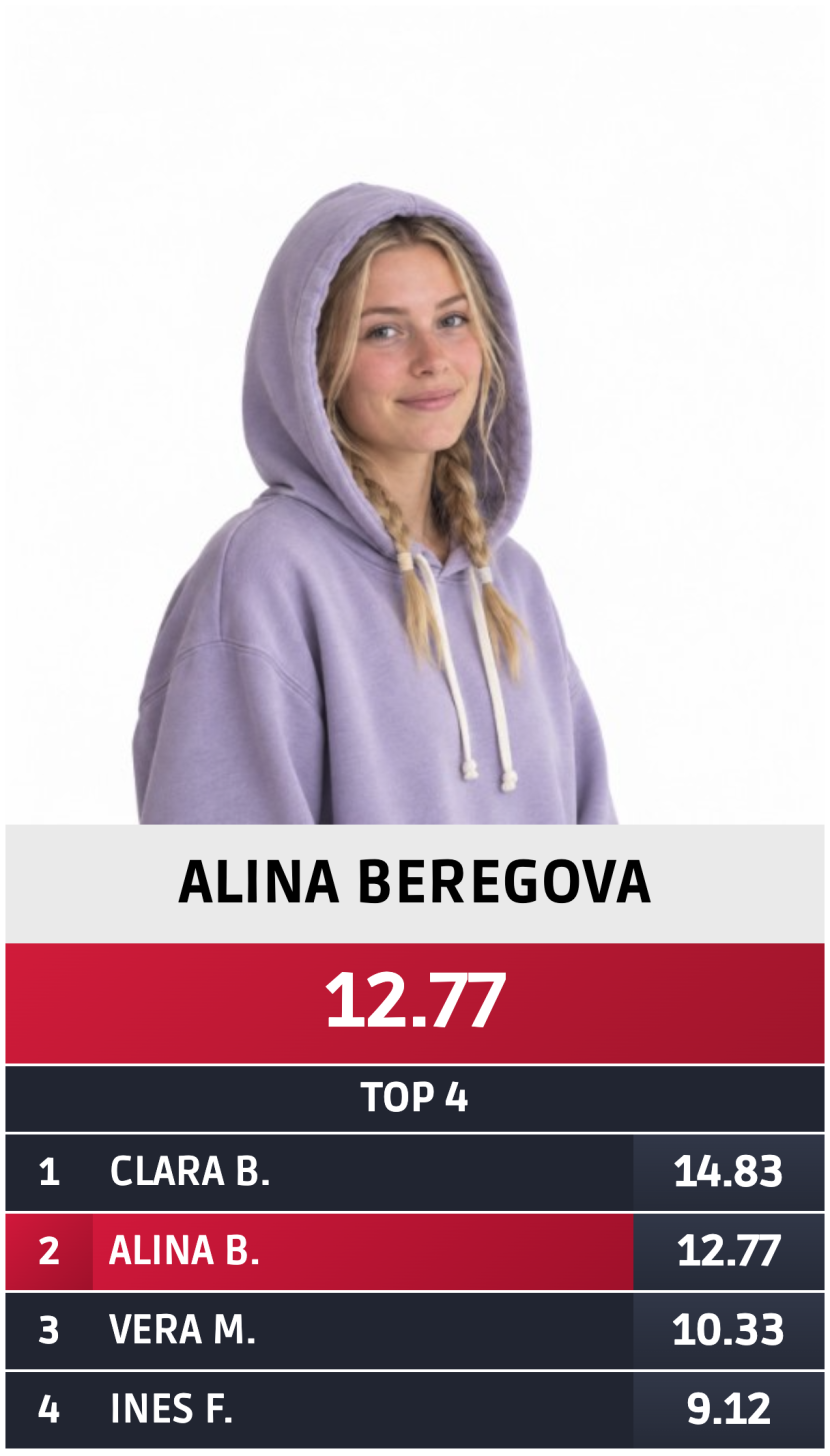
- Side column — heat name, ranking, athlete information and attempt number.
- Footer — the selected athlete or heat participants, ads and comments.
- Athletes below the preview determines whom to highlight and whose information to show.
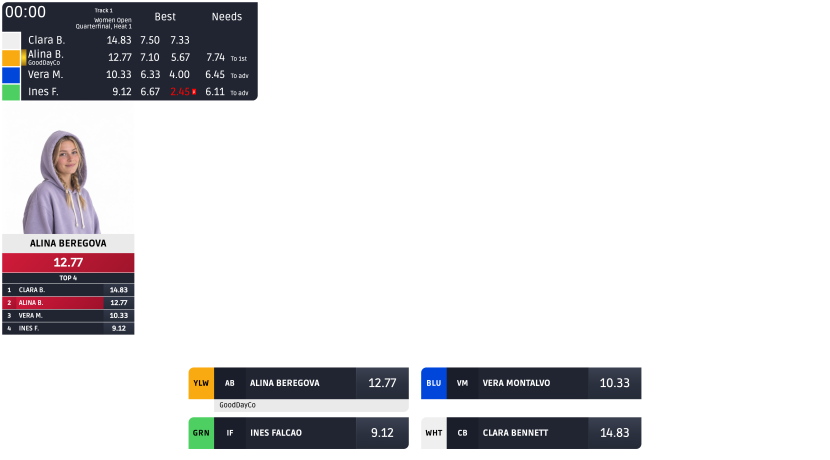
Side column close-up: the athlete card and heat ranking.
See “Athletes and scores in the video mixer” for detailed control settings.