
If your competitions use the same divisions, you can save their settings. In the next event, you will not need to enter the title, template, discipline and eligibility limits again.
Any division can be made persistent using the checkbox in its advanced settings.
-
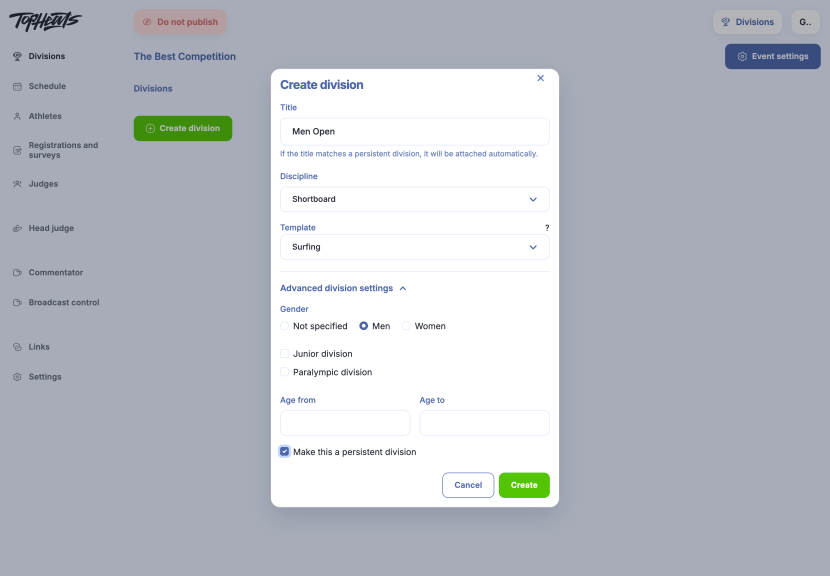
In the event, open Divisions → Create division.
-
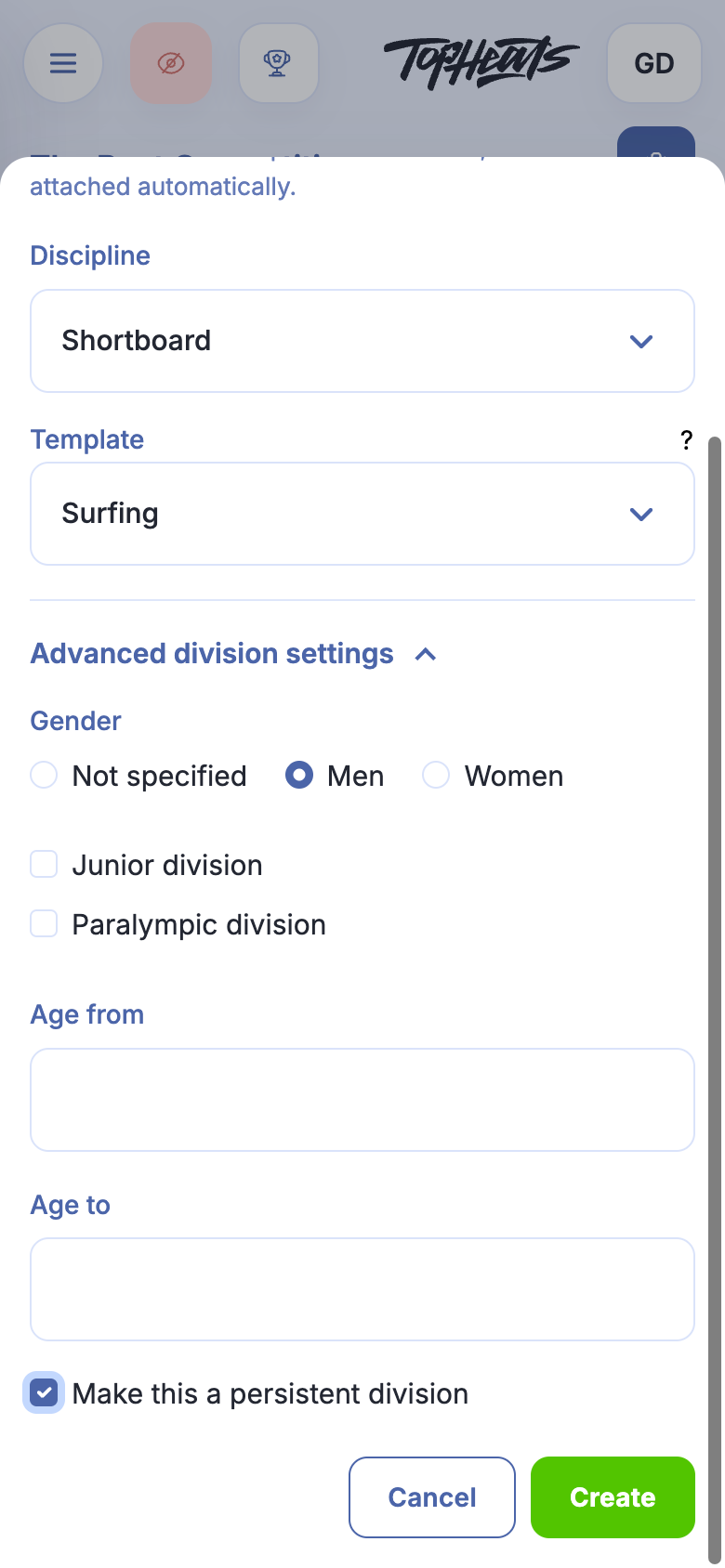
Enter the title, template and discipline. Advanced division settings lets you specify gender and age limits if needed.
-
Select Make this a persistent division.
-
Click Create.
The division appears in the event, and the organisation saves a persistent version.
Adding it to another event
-
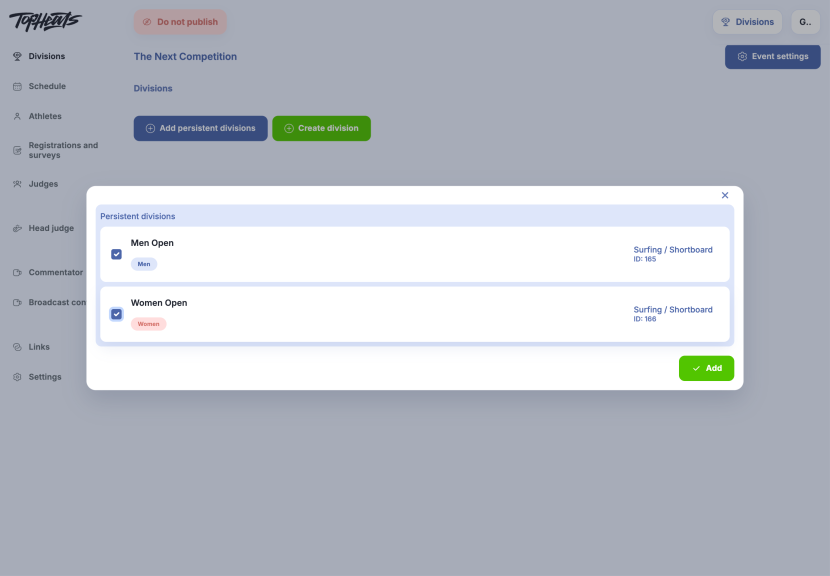
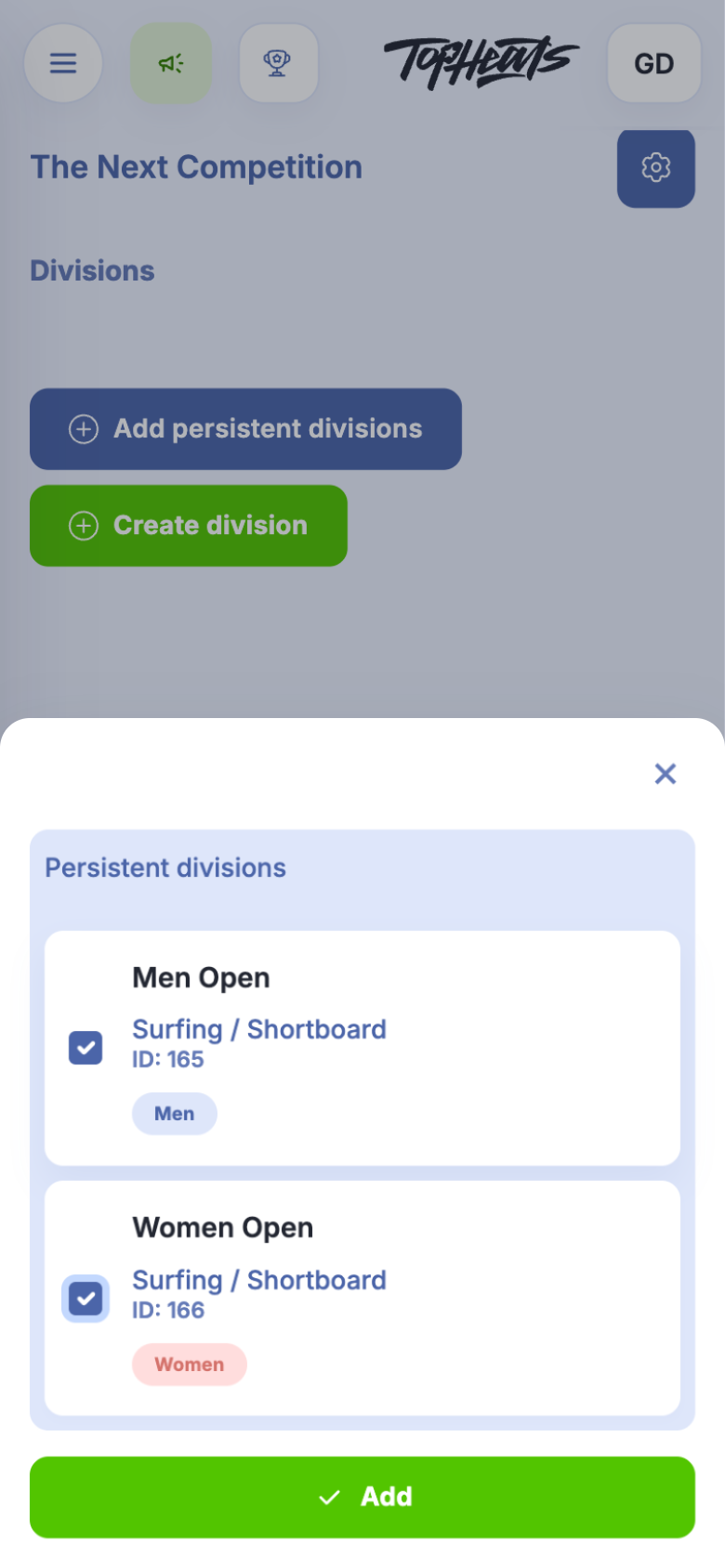
Open Divisions in the next event and click Add persistent divisions. This button is available once the organisation has a persistent division.
-
Select the required names and click Add.
Alternatively, click Create division and choose a saved title from the suggestions. Check the filled settings and click Create.
The organisation's persistent divisions are also available from the account menu → Persistent divisions. Open a division to change its saved settings.