
Athletes can be added to a division individually or from a list. Both methods create participant records for the organiser.
Open the event, select a division and go to Athletes.
Quick add
-
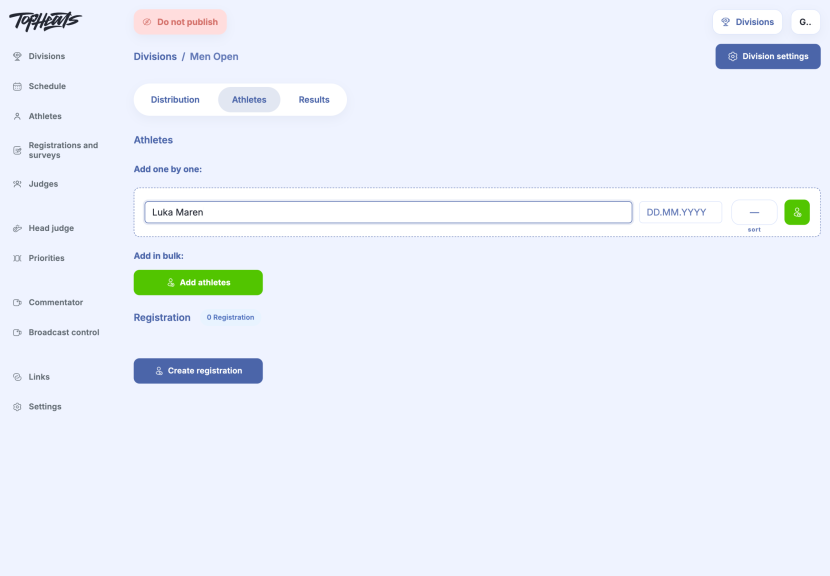
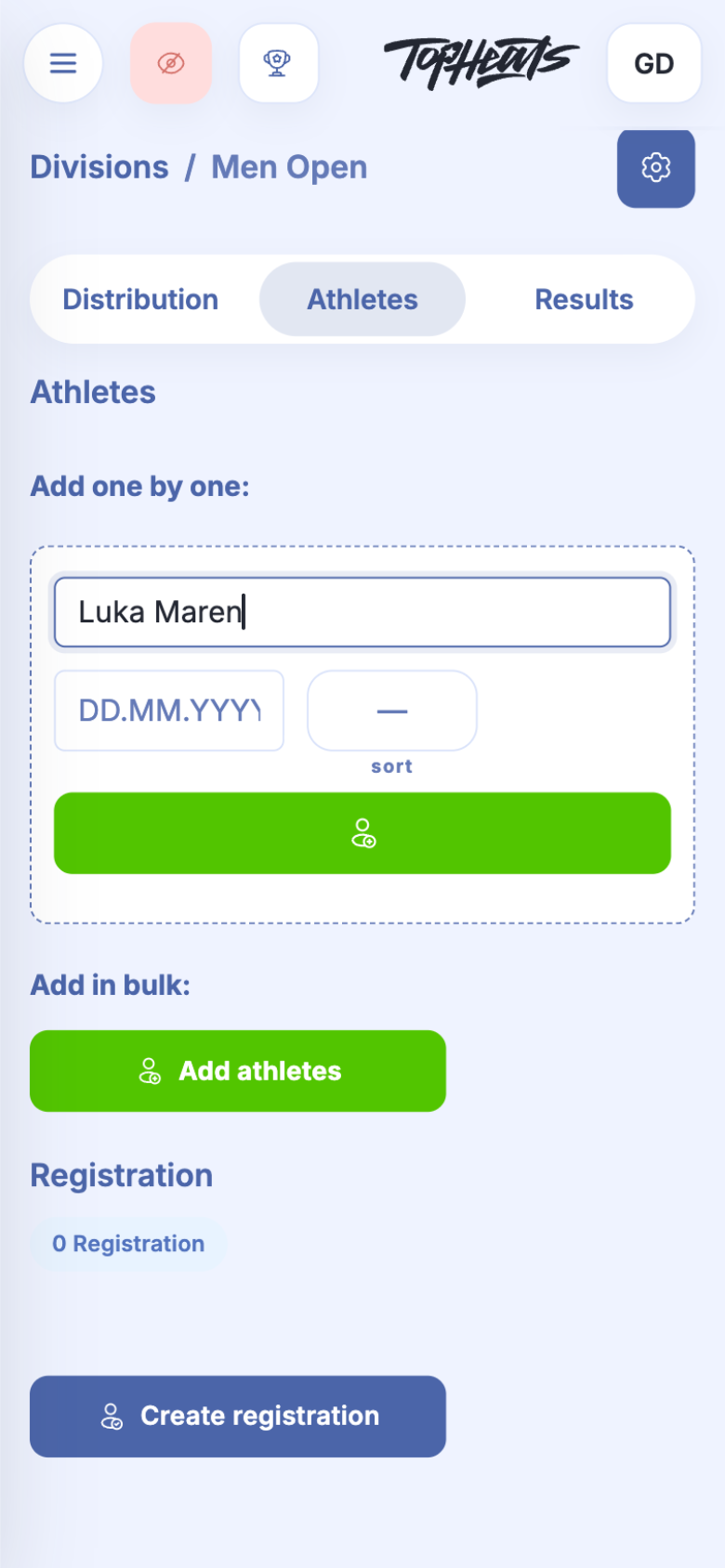
Enter the athlete's name in the field below the participant list. Add a birthday and sort value if needed.
-
Press Enter or click Add athlete. The athlete appears in the division.
Adding from a list
-
Click Add athletes → Add from list and paste the participants' names.
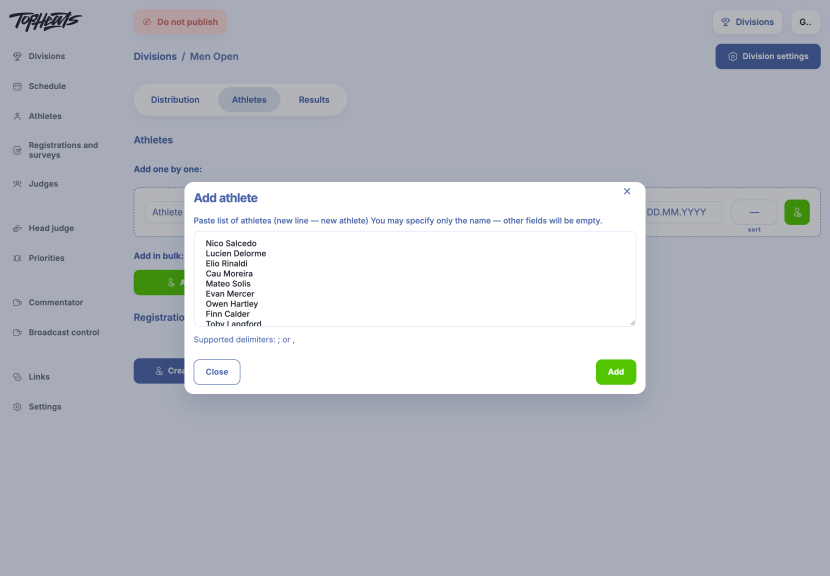
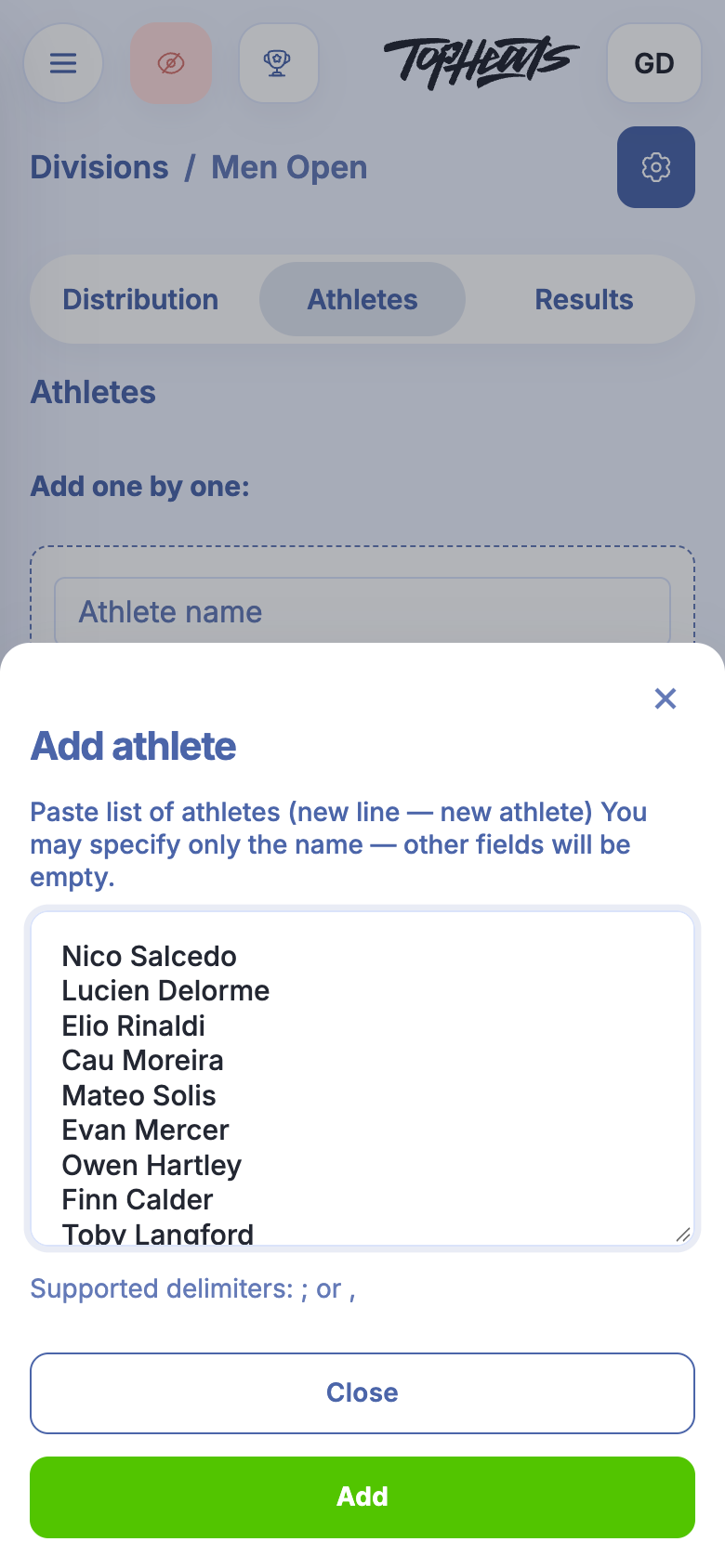
Each line represents one athlete. If you enter only names, the other fields remain empty.
-
Click Add. Check the athlete count and the first example record in the confirmation window.
-
Click Create. Check the division's list; you can add further details and seeding in the athletes' cards.
Leave out athletes who have already been added to this division by another method.
Further athlete details
The pencil button in the athlete's row opens their card. Here you can add contact details, gender, birthday, country, region and team, then Save the changes.
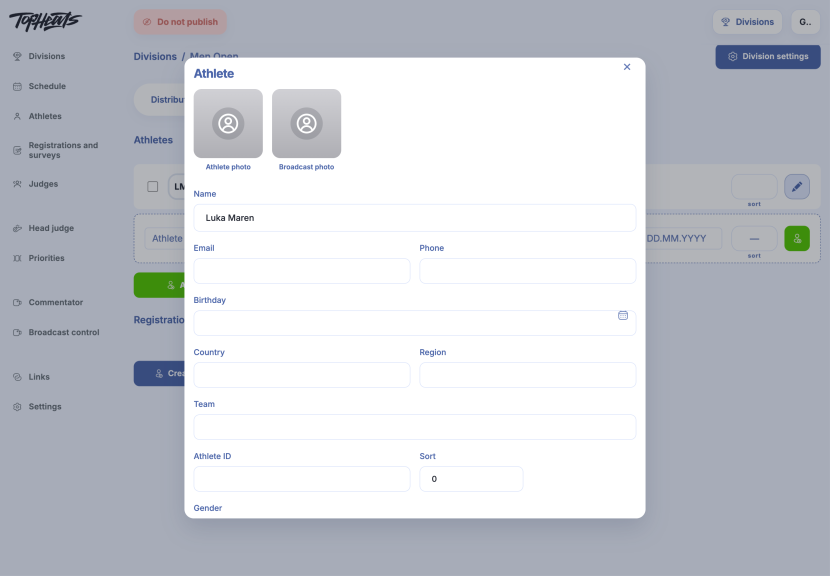
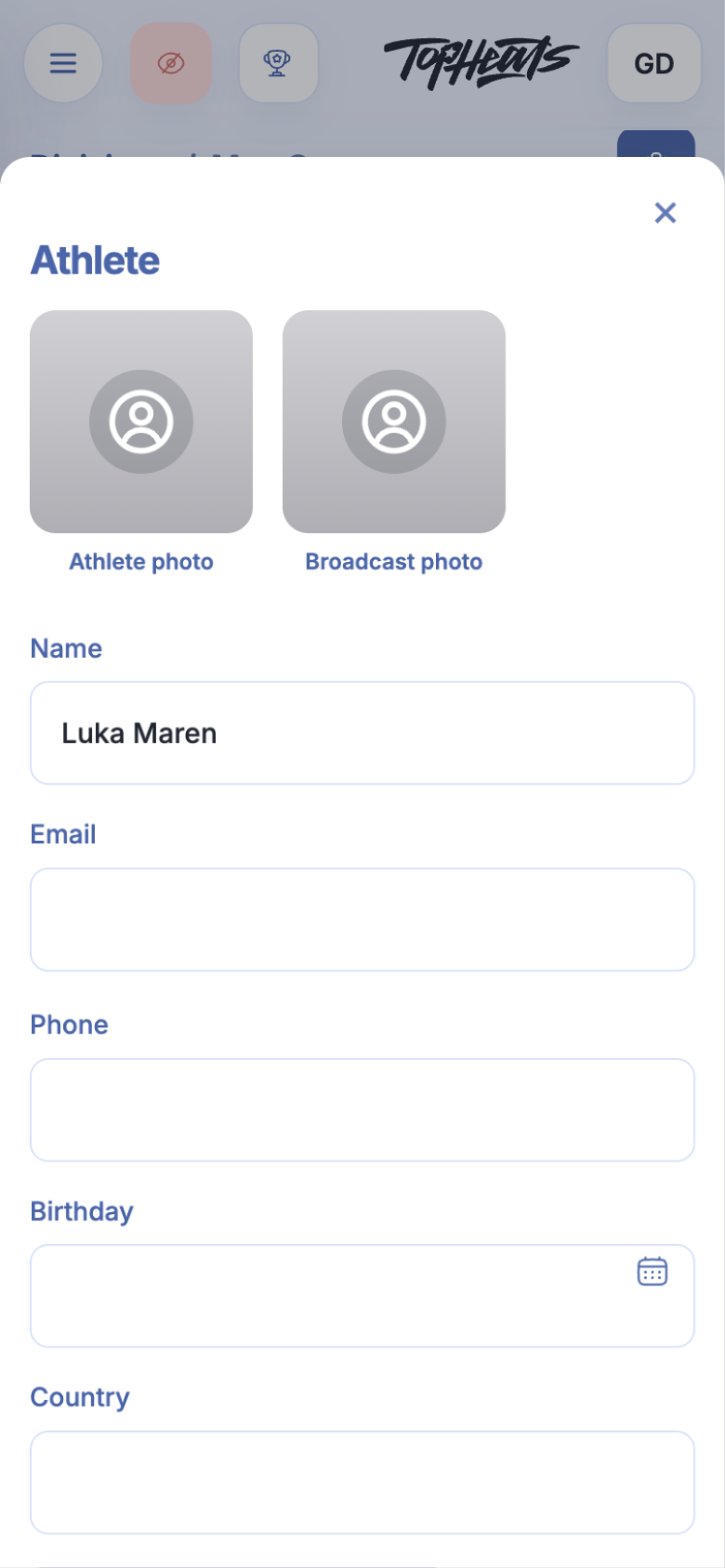
The organisation's athlete record
Adding an athlete individually or from a list does not create a TopHeats account for them.
Contact details and other internal information in this card are for the organiser. Viewers see public participant information, such as name, region and photo.
Athlete photo comes from the linked profile. The organiser can add a separate Broadcast photo for the stream. Editing the organisation's athlete record does not change the athlete's personal profile.
Sort determines seeding when distributing athletes into heats: a lower number means a higher seed. Set these values before building the draw.